Embedding the widget
The booking widget lives on your own Webflow site. You add it with a single script tag, and it appears inline on the page, in your own design, with no redirect anywhere. This page shows how to embed it, and how to share a direct link instead if you prefer.
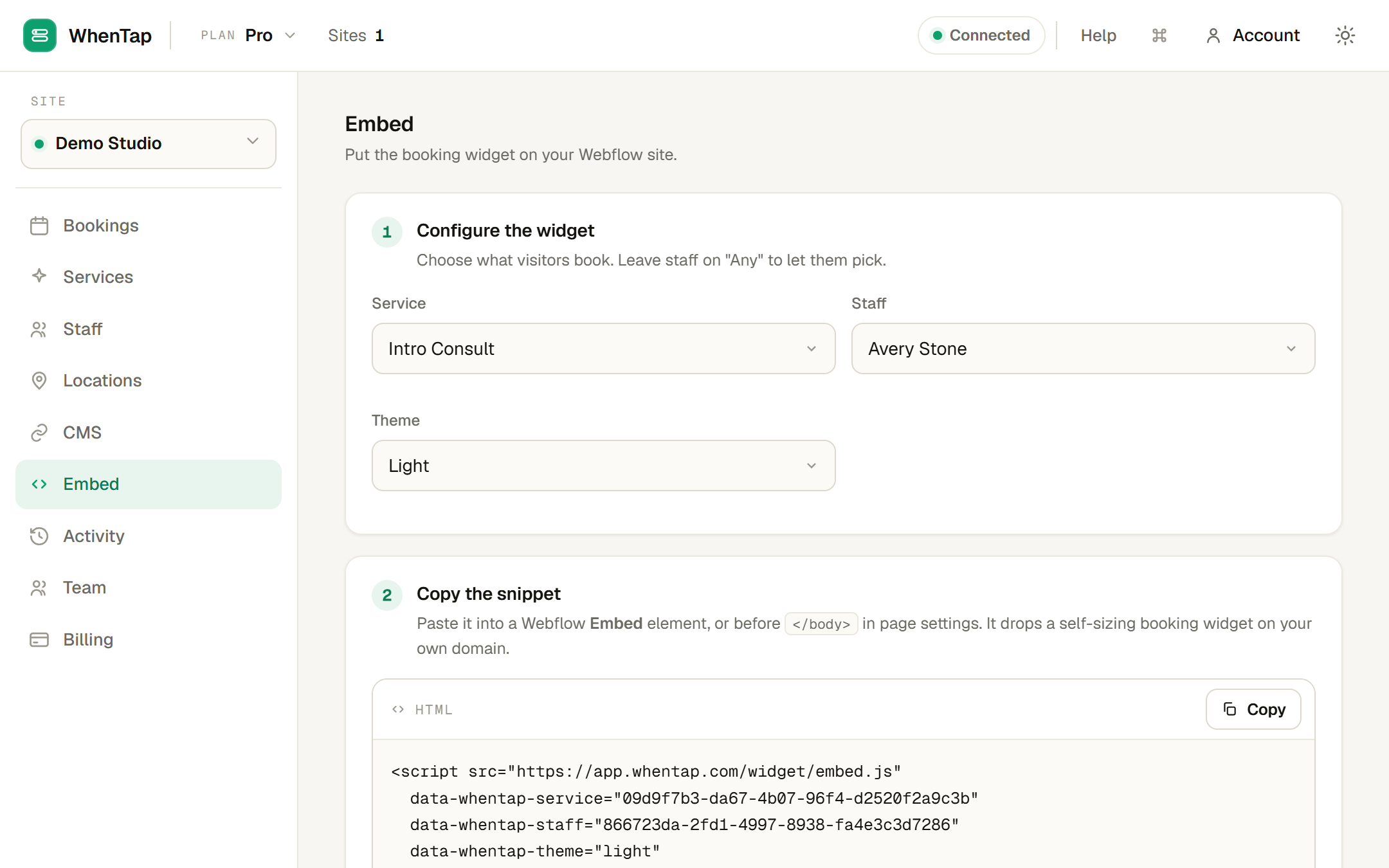
Copy your snippet
Open Embed in the panel:
- Choose the service visitors will book.
- Optionally choose a staff member. Leave it on "Any" and the widget lets the visitor pick who they want.
- Choose a theme, light or dark, to match the page.
- Copy the one-line snippet.
Paste it into Webflow
In the Webflow Designer, drop an Embed element where you want the widget to appear and paste the snippet. Publish the page. That is the whole integration, there are no flows to build and nothing to maintain.
The widget is a lazy, self-sizing iframe: it only loads when it scrolls into view, and it reports its height back to the page so there is never an inner scrollbar or a block of dead space. Because it can send visitors to Stripe Checkout, the iframe is allowed to handle payment.
Or share a direct link
If you would rather link to the widget than embed it, the Embed panel also gives you a direct URL. Use it as a button link anywhere, in an email, a bio, or a Webflow button. It opens the same booking flow on your domain.
What the visitor sees
The widget walks the visitor through a short flow, only showing the steps that apply:
- Staff, if you did not pin one (skipped automatically when there is only one).
- Location, if the service has more than one (skipped when there is one; see Locations).
- Date, then time, from the real availability of the chosen staff member.
- Details, name, email, and any intake questions you set.
- Done, with add-to-calendar buttons for Google and Apple.
If the service is paid, the visitor is sent to Stripe Checkout after the details step, and the booking confirms once they pay. See How booking works.
Changing the widget later
Edit your services, staff, hours or questions in the panel and the widget reflects the change straight away, there is no need to re-copy the snippet or re-publish, unless you want to change which service or theme the embed points at.