Finding your bookings
Once bookings start coming in, they show up in two places: the WhenTap panel, and, if you have write-back on, your own Webflow CMS. This page is a quick guide to both.
In the panel
Open Bookings in the panel. Every appointment on your site is listed with the customer, the service, the staff member, the time, and a status. Switch between Upcoming, Past and All.
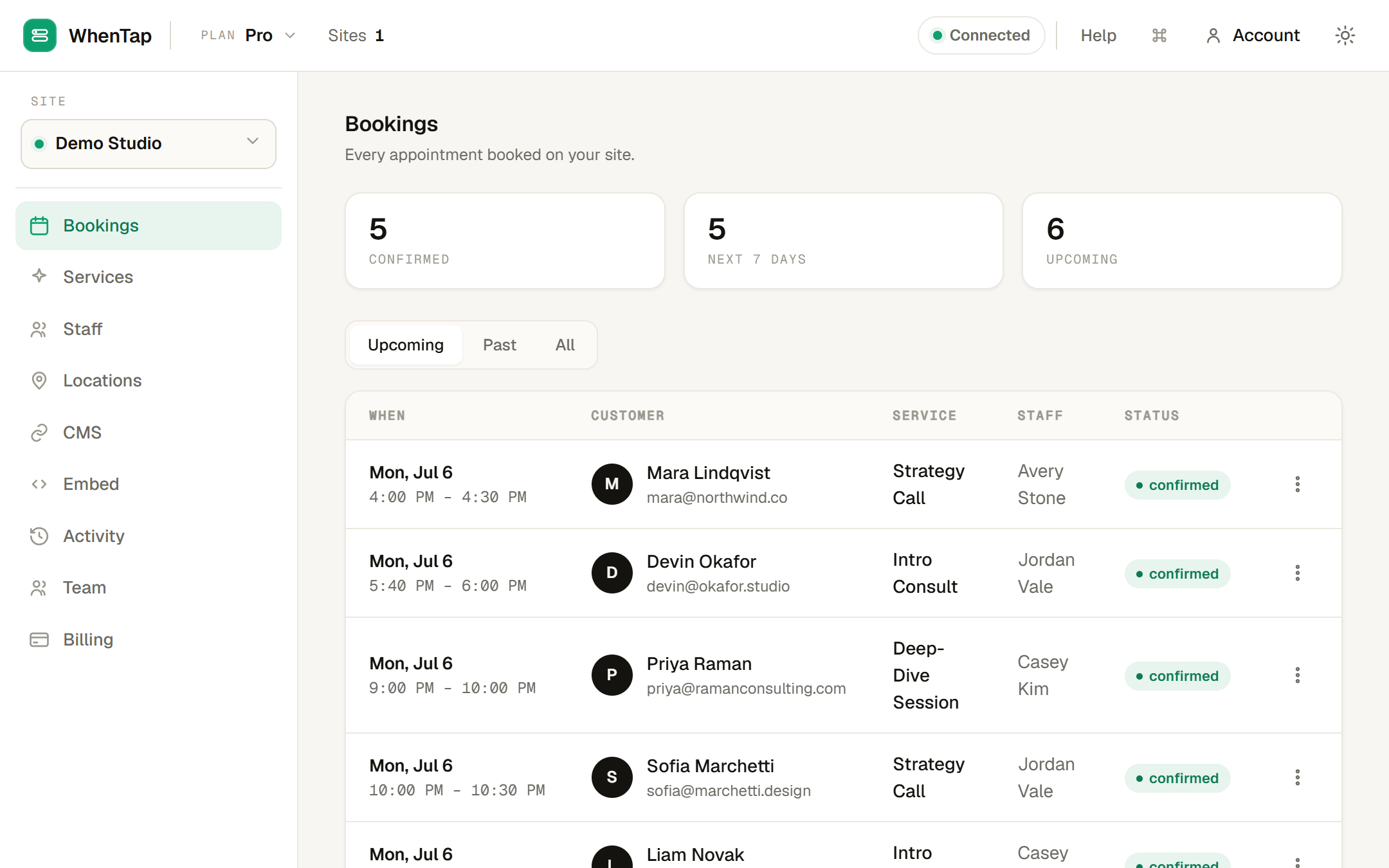
Open a booking to see its full detail, including any intake answers, and to act on it: reschedule it to a new time, cancel it, or mark it completed or a no-show. See Reschedule & cancel.
Statuses you will see: confirmed (booked and set), pending (a paid booking waiting on payment), rescheduled, cancelled, completed and no_show.
In your Webflow CMS
If write-back is on, each booking is also an item in your chosen Webflow Collection, a draft, ready to publish. That means you can do genuinely native things with your bookings:
- List upcoming appointments on a page.
- Filter by service or staff in a Collection List.
- Trigger a Webflow Logic flow when a booking comes in.
- Build a client-facing dashboard, all in Webflow, no export needed.
To find a specific booking in Webflow, open the Collection you write bookings into. The item's Name is "Service — Customer", so it is easy to scan, and its status field tracks the booking (it flips to cancelled if the booking is cancelled). See Booking write-back to your CMS.
On the customer's side
Customers do not need an account to manage their booking. Every confirmation contains a private, signed link to their own booking where they can reschedule or cancel. See Reschedule & cancel.
Exporting
Owners can download everything WhenTap holds, every site, service, staff member, location and booking, as a single JSON file from the panel, with no tokens or secrets included. See Team & permissions.