How booking works
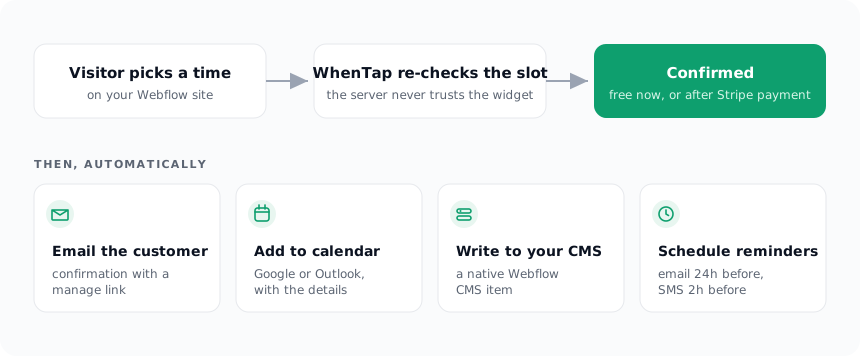
This page walks through exactly what happens between a visitor picking a time and everyone being notified. Nothing here is hand-waved: it is the real sequence the software runs.
Choosing a time
The widget shows real availability for the chosen staff member: their weekly hours, minus existing bookings, minus buffers, minus their calendar's busy times if a calendar is connected. Availability is worked out per date in the staff member's timezone and converted to exact moments in time, so daylight-saving shifts never move a slot by an hour, and impossible "spring forward" times are skipped rather than offered.
The slot is re-checked on the server
When the visitor submits, WhenTap does not trust what the widget sent. It recomputes availability for that window and confirms the exact start time is still open. If someone else took it in the meantime, the booking is refused and the widget quietly refreshes and asks the visitor to pick again. This is why WhenTap does not double-book, even under a rush.
Free bookings confirm immediately
If the service is free (or your Stripe is not connected), the booking is created as confirmed straight away and the fan-out below runs at once.
Paid bookings wait for payment
If the service takes payment, the booking is created as pending, which holds the slot, and the visitor is sent to Stripe Checkout. The moment Stripe confirms the payment, the booking flips to confirmed and the same fan-out runs. If they never pay, the pending booking simply does not confirm. See Taking payments with Stripe.
What happens on confirmation
As soon as a booking is confirmed, WhenTap does all of this, and none of it can block the booking, each step is best-effort:
- Confirms to the customer. An email goes out with the service, the time in their timezone, the staff member, how to attend, and a private link to reschedule or cancel.
- Adds it to the calendar. An event is created on the staff member's Google or Outlook calendar with the customer's details.
- Writes it to your CMS. The booking is saved as an item in your chosen Webflow Collection. See Booking write-back to your CMS.
- Notifies you. The site owner (and the staff member, if they have an email) gets a "new booking" email, including any intake answers.
- Schedules reminders. An email reminder is queued for 24 hours before the appointment, and the confirmation screen offers add-to-calendar buttons so the customer's own device reminds them too. See Confirmations & reminders.
After the booking
If the booking is later rescheduled, its calendar event moves, its reminders are re-scheduled, and its CMS item's date is updated. If it is cancelled, the calendar event is removed, reminders stop, the CMS item's status changes to cancelled, and any payment is refunded. See Reschedule & cancel.